If you’re struggling to read text on the Apple Watch, you may want to find out how to zoom in or out on the display.
Knowing how to use the zoom function can be invaluable if you want to get a closer look at things like incoming notifications at a wider angle.
However, if you’re used to using an iPhone, you may be surprised to realize that pinching the screen with two fingers doesn’t do the trick with an Apple Watch.
Luckily, the Apple Watch zoom function is simple and intuitive to use.
Turning Apple Watch zoom on or off
Wareable
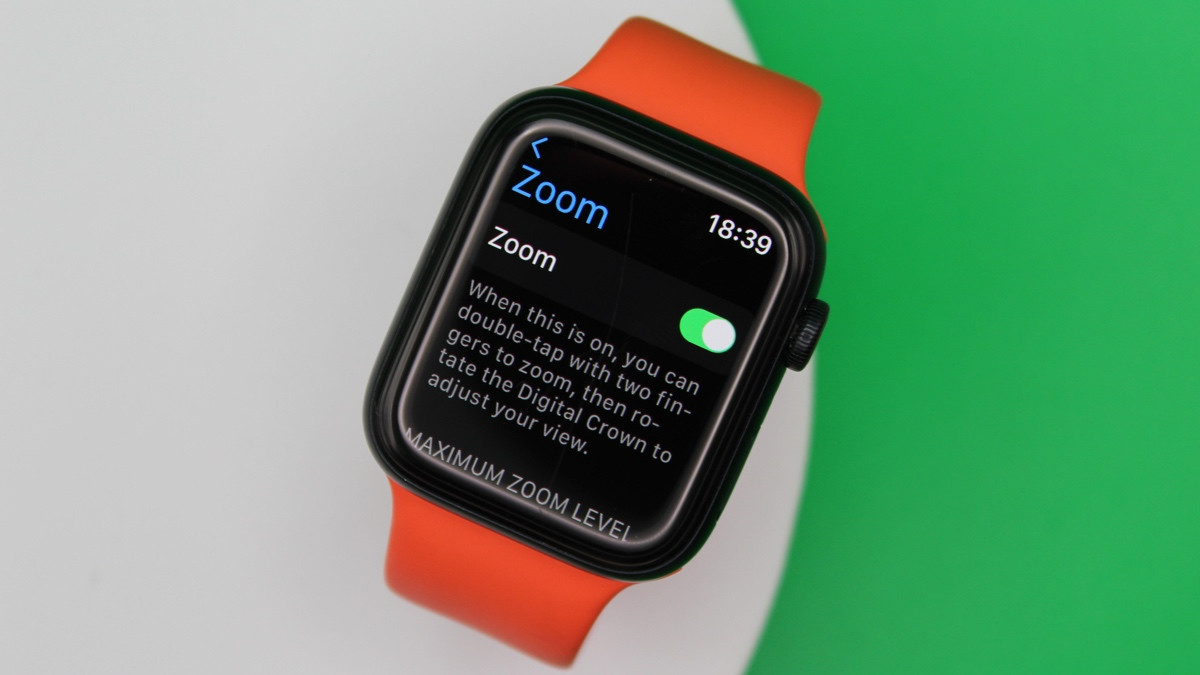
You can turn the Apple Watch’s zoom function on and off in the settings app.
1. Press the crown
Press the crown on the right-hand side of the watch to bring up the honeycomb app layout.
2. Select ‘Settings’
Find the settings app by tapping the grey cog icon within the collection.
3. Go to ‘Accessibility’
Navigate the menu to find the accessibility settings, next to a blue circular icon with a white stick figure. Tap on this to bring up a new menu.
4. Choose the ‘Zoom’ option
Tap ‘Zoom’ and use the toggle switch on the screen to turn the function on and off. You can adjust the maximum zoom level using the plus and minus icons.
Using zoom on the Apple Watch
Wareable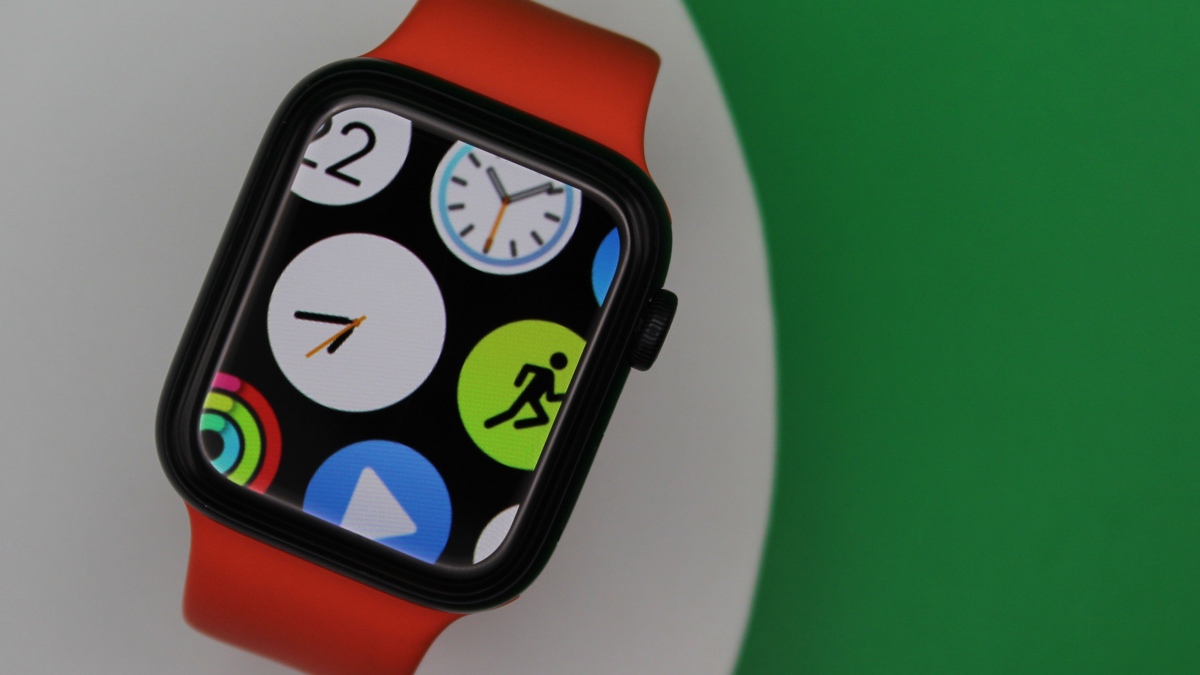
Zoom in and out
Using two fingers, double-tap on the screen. You should notice that the watch zooms in on the photo or text on the screen. To zoom back out, simply double-tap the screen with two fingers again.
Pan on screen
Either drag two fingers across the screen to move the image or text from side to side, or twist the crown.

By Conor Allison
Conor moved to Wareable Media Group in 2017, initially covering all the latest developments in smartwatches, fitness trackers, and VR. He made a name for himself writing about trying out translation earbuds on a first date and cycling with a wearable airbag, as well as covering the industry’s latest releases.
Following a stint as Reviews Editor at Pocket-lint, Conor returned to Wareable Media Group in 2022 as Editor-at-Large. Conor has become a wearables expert, and helps people get more from their wearable tech, via Wareable’s considerable how-to-based guides.
He has also contributed to British GQ, Wired, Metro, The Independent, and The Mirror.