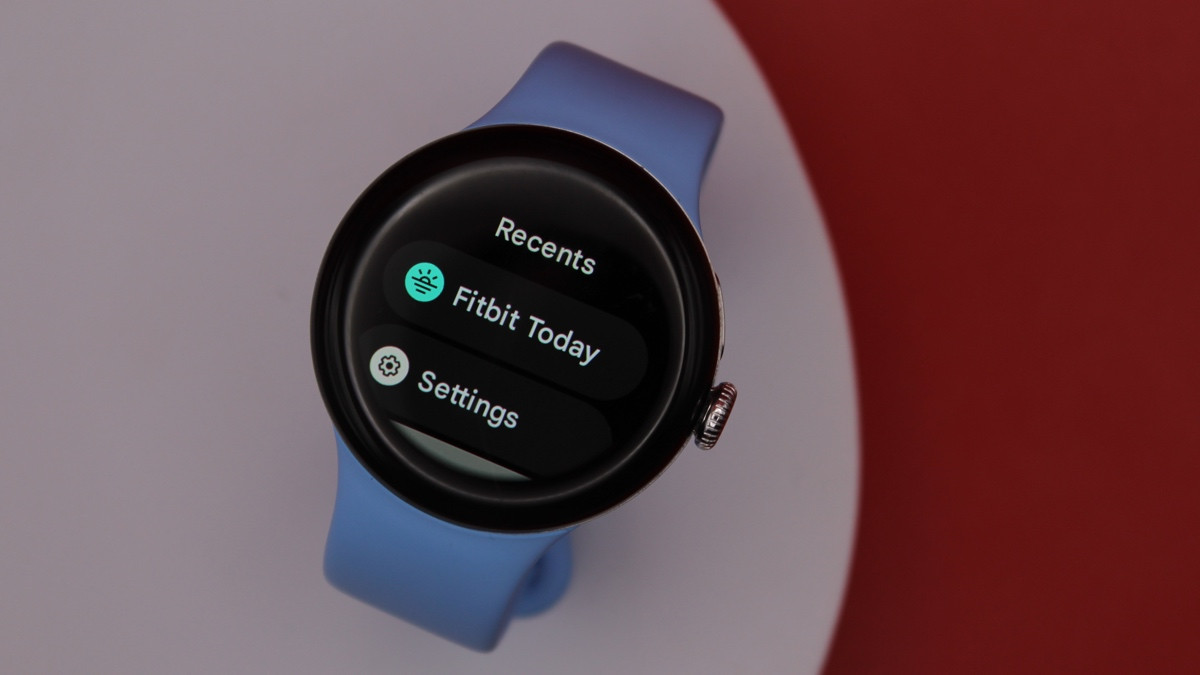
Knowing how to close apps on the Google Pixel Watch is essential for maintaining some smartwatch zen and keeping your ‘Recents’ tab from becoming a wasteland.
Weeding out the clutter to make it easy to access your favorites isn’t the only reason why you may want to close Pixel Watch apps, either. Doing so can sometimes prove a quick fix for apps that have frozen – and that’s why this is an essential Pixel Watch trick to learn.
Thankfully, doing so couldn’t be more straightforward – follow these two steps to close apps on the Pixel Watch or Pixel Watch 2.
Solution: Press and hold to close apps
Wareable
1. Bring up your recent apps
Press the button on the right-hand side of the watch, located above the digital crown.
This should bring up a list of your most recently used apps.
2. Perform a long press to close them
Navigate to the app you’d like to close by using the crown or touch to scroll.
Once you’ve found the app you want to close, simply perform a long press by holding your finger on the display for around a second, then release it. The app will disappear from the list, and, voila!

By Conor Allison
Conor moved to Wareable Media Group in 2017, initially covering all the latest developments in smartwatches, fitness trackers, and VR. He made a name for himself writing about trying out translation earbuds on a first date and cycling with a wearable airbag, as well as covering the industry’s latest releases.
Following a stint as Reviews Editor at Pocket-lint, Conor returned to Wareable Media Group in 2022 as Editor-at-Large. Conor has become a wearables expert, and helps people get more from their wearable tech, via Wareable’s considerable how-to-based guides.
He has also contributed to British GQ, Wired, Metro, The Independent, and The Mirror.