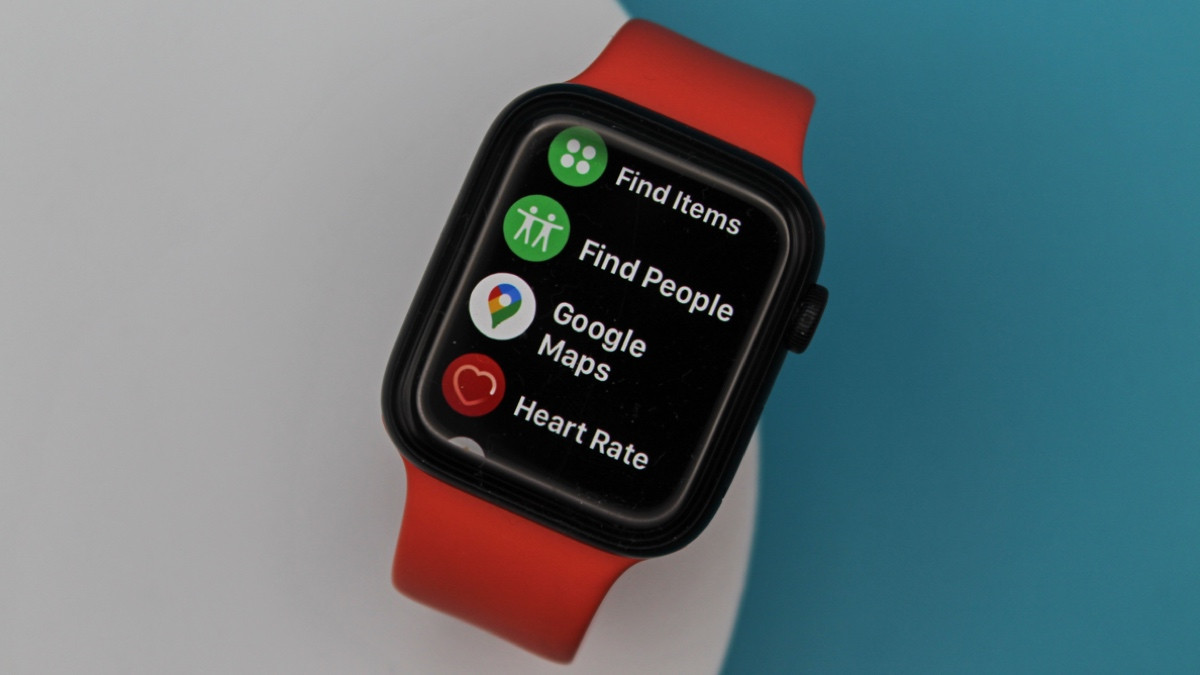
If Google Maps is your preferred method for navigating around town, it’s essential to download and use the dedicated Apple Watch app.
Google Maps has had a bit of a turbulent history with the Apple Watch. After becoming one of the first major third-party apps on the smartwatch, it was then pulled in 2017 before returning in 2020.
Since then, it’s remained a great alternative for those who don’t get on with Apple’s own Maps app.
Below, we’ll be explaining how to set up location shortcuts and turn-by-turn directions. Let’s go.
Google Maps on Apple Watch requirements
Wareable
Like with every app on the Apple Watch, you’ll need to make sure your device meets the correct software requirements to use Google Maps.
Below is a checklist of things you’ll need:
- Apple Watch running watchOS 5 or later
- Apple iPhone running iOS 10 or later
- Bluetooth enabled (for route guidance set up on iPhone)
- Location Services enabled on iPhone (Settings > Privacy > Location Services > Google Maps)
Set up location shortcuts
As you’ll be familiar with if you’re a regular user of Google Maps, you’ll have your typical shortcuts for quick access to common destinations like ‘Home’ and ‘Work’.
You can also initiate set up new ones and edit existing shortcuts from the Apple Watch:
1. Open the Google Maps app on the Apple Watch.
2. Tap ‘Home’, ‘Work’, or ‘Edit shortcuts’.
3. On your iPhone, follow the instructions to set up or edit a shortcut.
Providing the iPhone is paired with your Apple Watch, this will then sync over and allow you to quickly set it for route guidance.
Wareable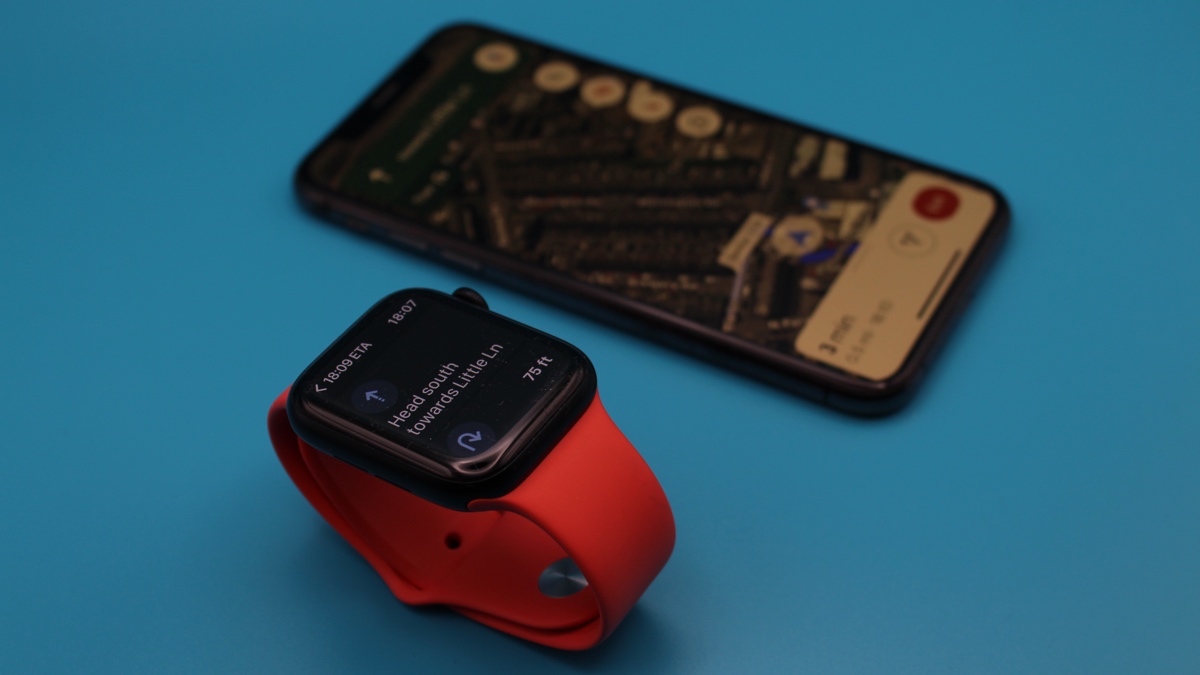
Before you start any type of navigation between the Apple Watch and Google Maps, make sure to open the app, scroll down to ‘set travel mode’, and choose between driving, walking, cycling, or public transport.
Next, you’ll have to choose whether to travel to an existing shortcut or a new destination. We’ve outlined the methods for both below.
Navigate to an existing shortcut
1. Open the Google Maps app on your Apple Watch.
2. Tap one of your pre-selected shortcuts.
3. Route guidance will automatically start, with haptic alerts occurring to signal a new direction.
Tip: You can also view the route on your iPhone if you begin route guidance from the Apple Watch.
Navigate to a new destination
1. From your iPhone, enter your destination, the method of travel and begin navigation.
2. Next, open the Google Maps app on your Apple Watch.
3. Under ‘Current trip’, tap the ETA to view directions.

By Conor Allison
Conor moved to Wareable Media Group in 2017, initially covering all the latest developments in smartwatches, fitness trackers, and VR. He made a name for himself writing about trying out translation earbuds on a first date and cycling with a wearable airbag, as well as covering the industry’s latest releases.
Following a stint as Reviews Editor at Pocket-lint, Conor returned to Wareable Media Group in 2022 as Editor-at-Large. Conor has become a wearables expert, and helps people get more from their wearable tech, via Wareable’s considerable how-to-based guides.
He has also contributed to British GQ, Wired, Metro, The Independent, and The Mirror.